WEEK 5
TOPIC: features of the graphics Packages
CONTENT
Title bar
 The title bar is a bar located at the top of a window or a dialog box that displays the name of the window or software program being used. For example, in the picture below, the title bar displays the name of the program
Toolbar
Sometimes referred to as a bar, the toolbar is a row of boxes, often at the top of an application window that control various functions of the software. The boxes often contain images that correspond with the  function they control, as demonstrated in the image below
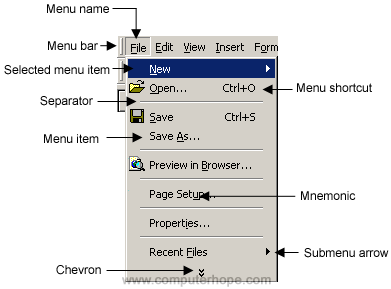
Menu bar
A thin, rectangular window containing dropdown menus, a menu bar is used in many computer programs. Its primary function is to house application or window-specific menus that provide an assortment of functions to the user. These functions include interactions like opening files, editing text, bringing up software-related help menus.
Colour palette
This comprises of different colours for your drawing. The colour can be selected by clicking on them.
Printable Area
this is portion where our drawing and pictures are maniputed and placed for printing.
PRACTICAL
WEEK 6
TOPIC: Graphic Packages-Paint tools
FEATURES OF THE GRAPHIC PACKAGE – PAINT
Paint tools
Applies to Windows Vista
Paint is a program you can use to create drawings on a blank canvas or on top of other pictures. The program features a toolbar on the left side of the window. The following tables describe how to use each of the tools on this toolbar.
 Tool
Tool
Description
Use Free-Form Select to select any irregularly shaped part of the picture
 Tool
Tool
Description
Use Select to select any square or rectangular part of the picture.

Tool
Description
Use the Eraser to erase areas of your picture.
 Tool
Tool
Description
Use Fill With Color to fill the entire picture or an enclosed shape with color.
 Tool
Tool
Description
Use Pick Color to set the current foreground or background color.
 Tool
Tool
Description
Use the Magnifier to zoom in on a section of your picture.

Tool
Description
Use the Pencil to draw thin, freeform lines or curves.
Tool
Description
Use the Brush to paint thick or shaped freeform lines and curves.

Tool
Description
Use the Airbrush to create an airbrush effect in the picture.
 Tool
Tool
Description
Use Text to enter text in the picture.

Tool
Description
Use Line to draw a straight line.

Tool
Description
Use Curve to draw a smooth, curved line.

Tool
Description
Use Rectangle to draw rectangular shapes.
 Tool
Tool
Description
Use Polygon to make a shape with any number of sides.
 Tool
Tool
Description
Use Ellipse to make ellipses and circles.

Tool
Description
Use triangle to draw triangular shapes.

Tool
Description
The Color box indicates the current foreground and background colors.
 Tool
Tool
Description
Choose the desired line thickness when you draw lines and curves.
Option
Description
Choose the desired fill effect when you draw shapes.
PRACTICAL